
 English
  Français
  Italiano
  Español
  Português
  Deutsch
 Step 1
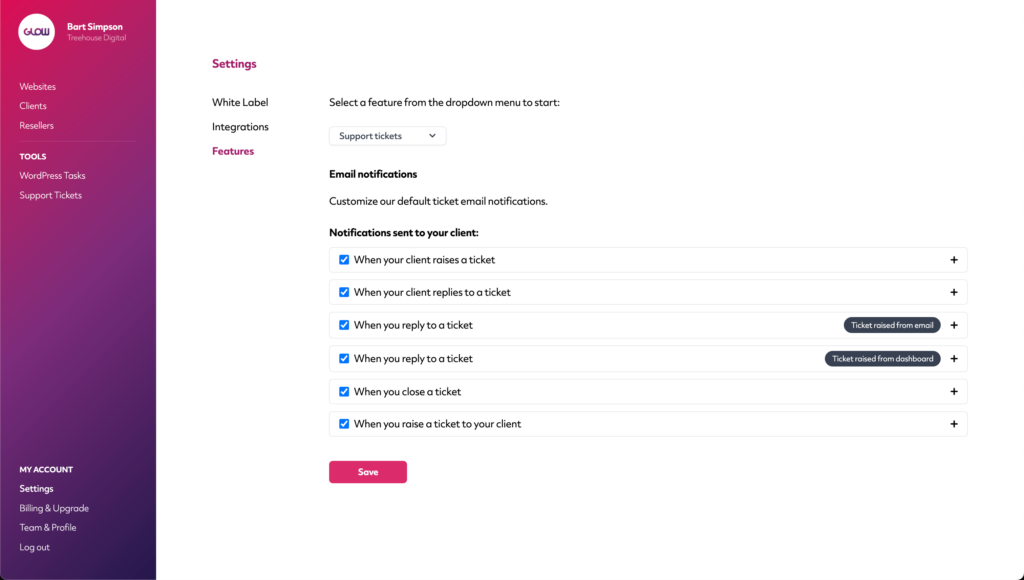
Head over to Settings > Features and then select Support tickets from the feature dropdown menu.
Step 2
You’ll now see a new section appear below, entitled Email notifications. Each email notification is contained within an accordion. To begin editing, simply expand the accordion for the email you’d like to customise.
Step 3
Now the accordion is open, you’ll see a brief description of when this email notification is sent, plus a few other things:
- Subject field
- Email body text
- Placeholders
Step 4
Start by customising the Subject field. You can click Show placeholders link to dynamically show different content in the Subject field.
Step 5
Next, customise the Email body text. The text area is a free type text box and you can use the toolbar above to add rich text, links and even images.
Note: You can also change the text from English to your desired language, simply by adding in your own translations.
Step 6
When you’re done with the customisations, click the Save button at the bottom of the screen.
