
 English
  Français
  Italiano
  Español
  Português
  Deutsch
 Support ticket system
Email doesn’t cut it for customer support. When you’re managing multiple WordPress sites and handling client support requests, you need a professional ticket system.
- Clients still email you
- Syncs with reports
- Collab with team
The support ticket system is the top reason we chose Glow. We now find it so much easier managing all of our clients’ website support requests.

Jag Panesar, Founder & CEO, Xpand
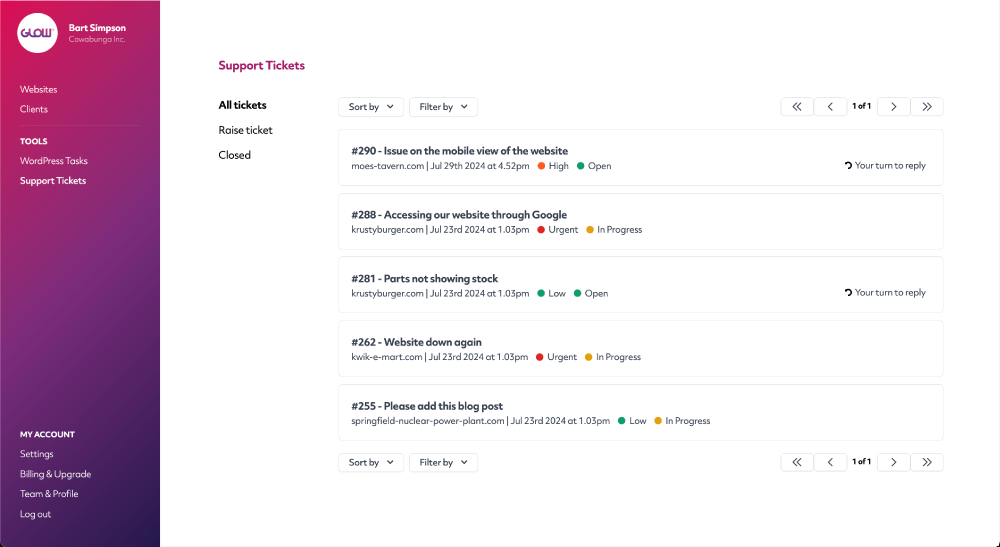
Manage all your support requests in one dashboard
Say bye to email. It just doesn’t cut it for handling client support. Say hello to a professional ticket system, tailored to providing WordPress support & maintenance, that will help your team deliver an outstanding level of service.
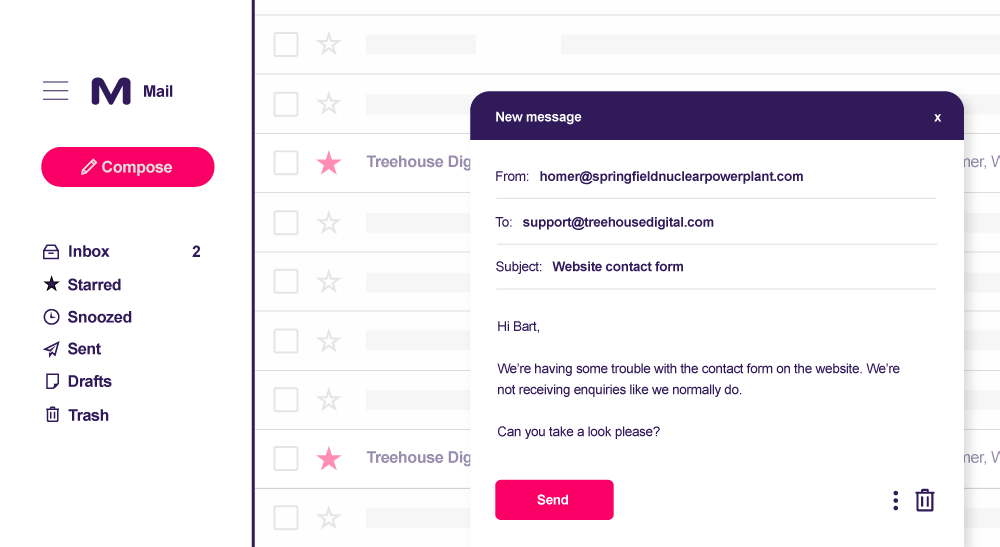
Your clients can raise + reply by email
No one can deny the ease of raising a quick support ticket via email. That’s why this is built into our ticket system.
Your clients can raise and reply to tickets from their inbox. You manage them all from Glow.
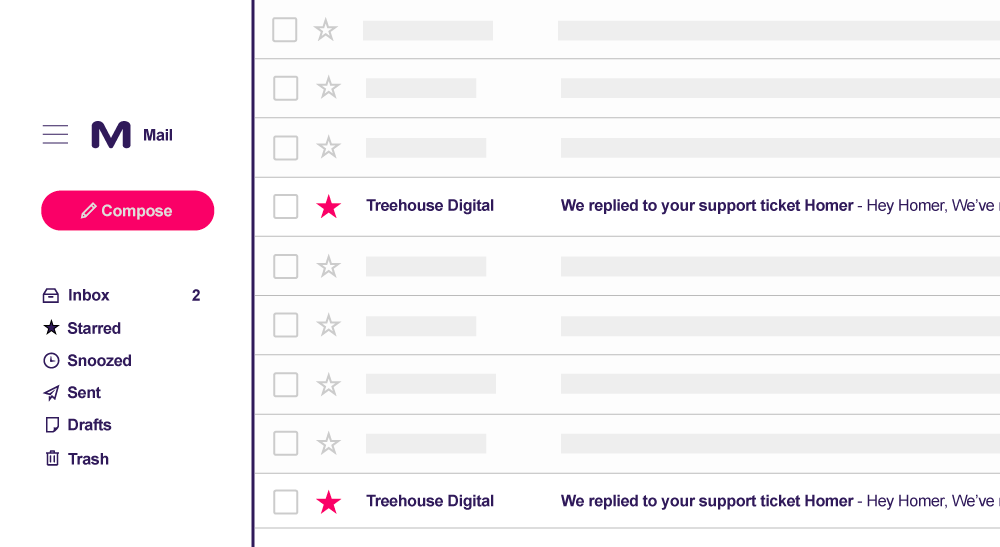
Email notifications to alert your client
Your clients are notified each time you reply to or resolve a ticket, so that they never miss a thing. These are great for showing your client that you genuinely care about your SLA and the experience they’re getting.
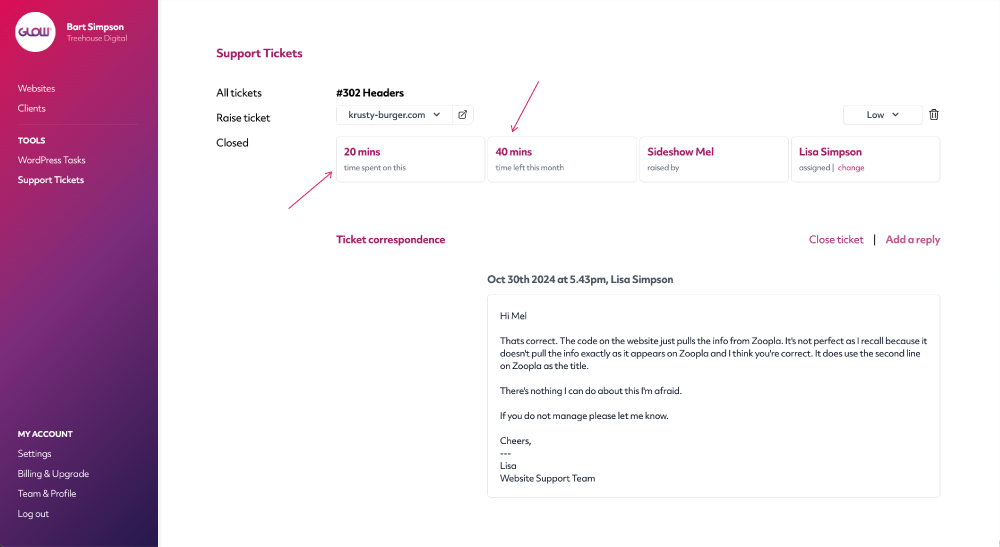
Track time
Something none of us love doing but all know the importance of. With each ticket reply you’ll be able to record your time and Glow keeps a running total until you close the ticket. You can also keep an eye on how much time your client has used in this billing cycle.
Assign tickets to different teammates
Quickly and easily assign tickets to different members of your team so that your client is always being looked after by the right person. Your teammate will be notified when they’re assigned to a ticket.
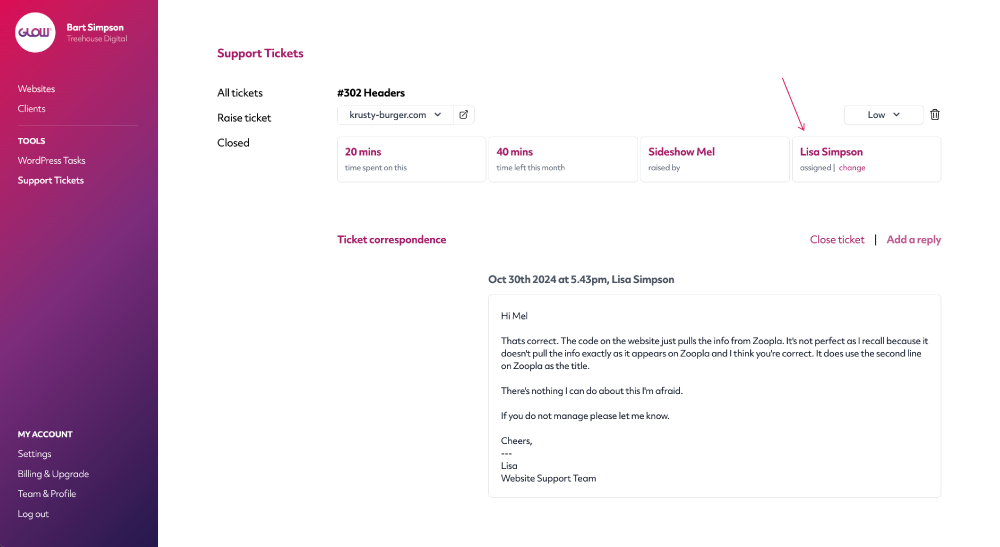
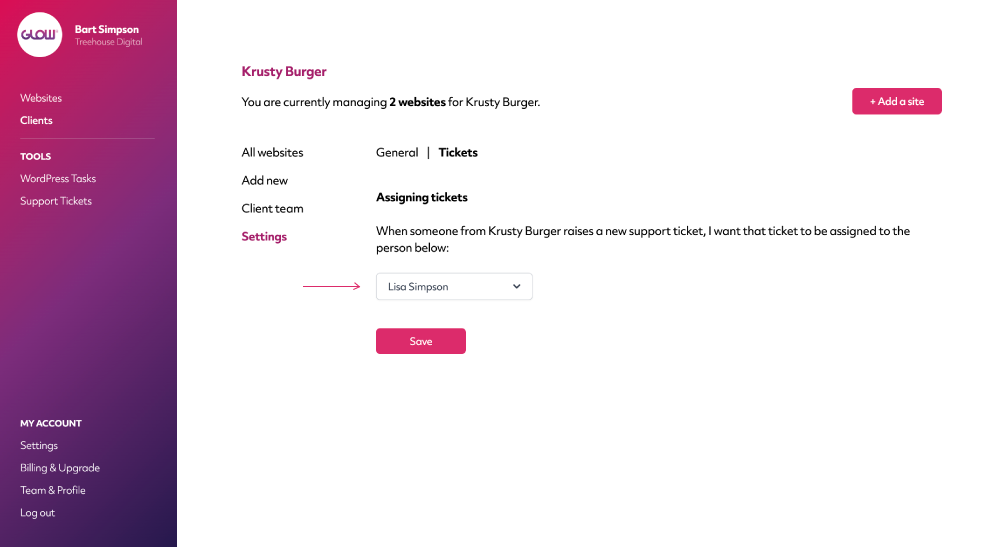
Assign teammates to clients
If you have teammates that are assigned to certain client accounts, you can assign them to that client.
Then, each time that particular client raises a ticket, it’s that teammate who is notified and assigned to the ticket.
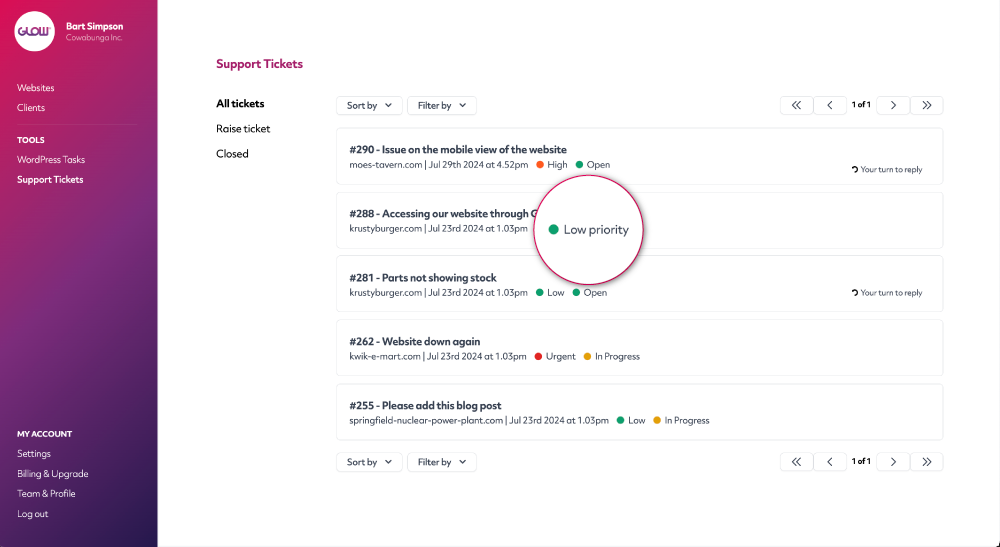
Set priority
Allow your clients to honestly set a priority for the tickets they raise to you. Site gone down? Urgent priority! Team member photos need updating? Low priority.
You have the flexibility to update the priority level and organise support tickets in priority order.
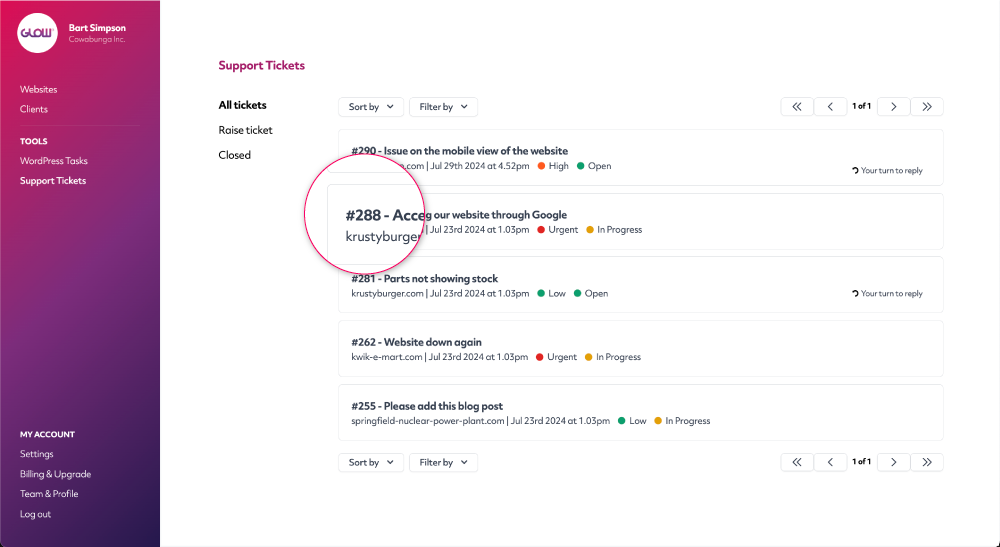
Ticket IDs
When discussing support tickets with your teammates it’s often handy to have a quick reference point.
That’s what our ticket IDs give you. You’ll know that one teammate is assigned to ticket #4 and another to ticket #40.
One click website login
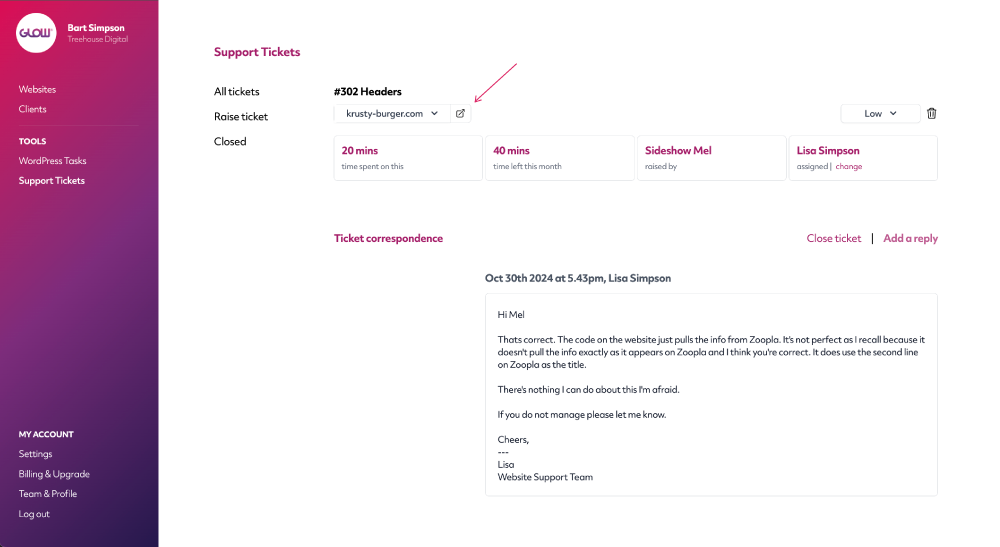
While handling support requests from clients, you often need to login in to their website and do something. Just click the ‘Login’ link on the support ticket screen and you’ll be taken straight to your client’s WordPress dashboard.
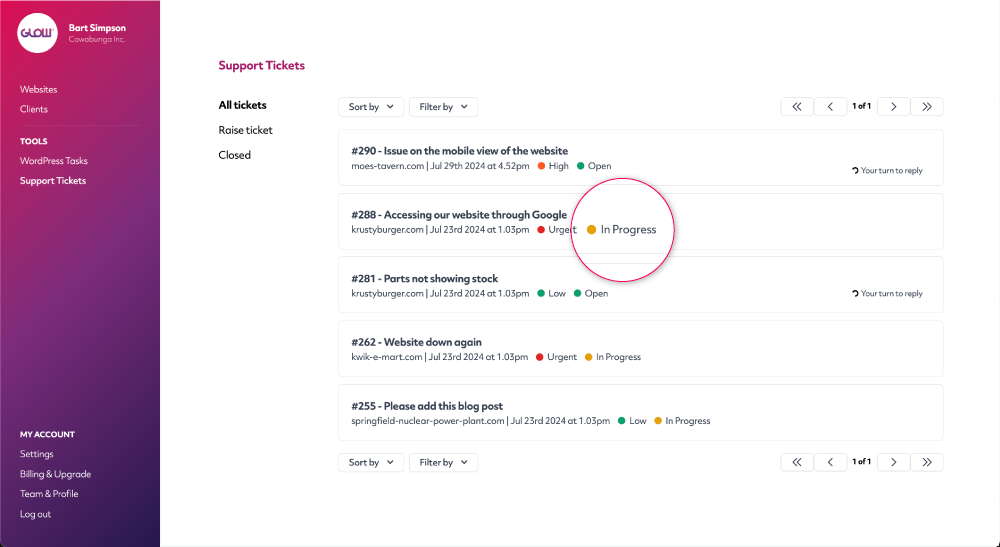
Clear progress indicators
When a client raises a ticket that you haven’t responded to, Glow marks that ticket as Open. Once you respond, it’s In Progress and once you’ve resolved the client’s issue it’s Closed. Use our handy filter menu to see tickets marked as Open, In Progress or Closed.
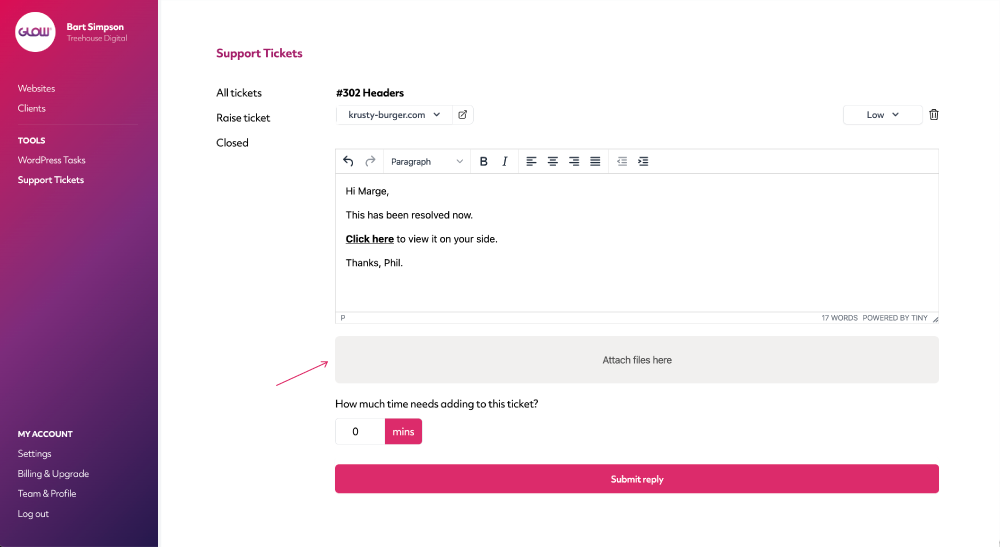
Easy file attachments
Add PDFs, PNGs, JPGs, whatever file type you feel like! Your clients can use this too.
Really handy for things like screenshots to highlight an issue, or if your client is sending you a document that needs adding to their site.
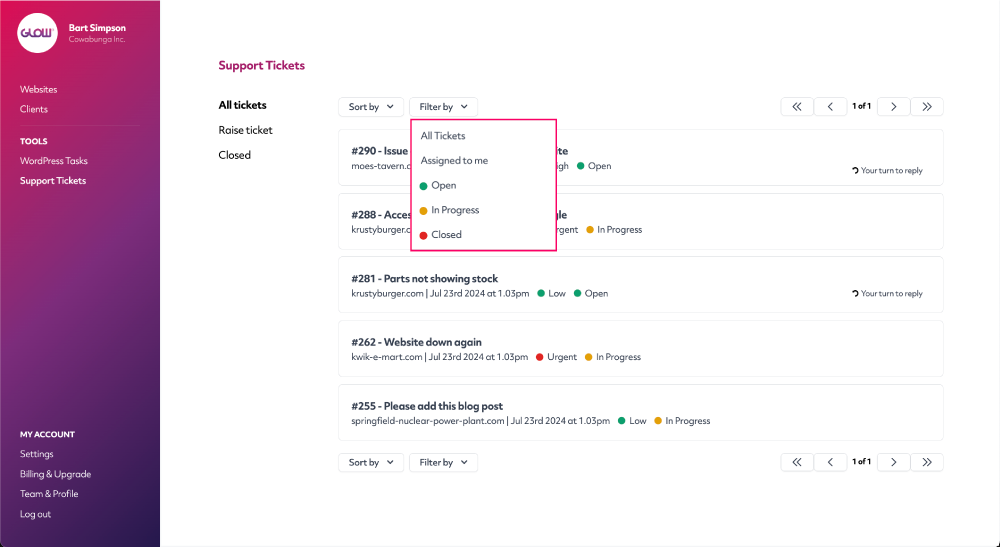
Handy filters
Quickly find the tickets you need using the filter dropdown. If you’re working in a team, use the super handy ‘assigned to me’ filter, which will show you only those tickets that you’re looking after.
Digital agency and web development teams trust Glow:

WordPress Management Tools

WordPress Management Tools

WordPress Management Tools

WordPress Management Tools

FAQs about our Support Ticket System
Do our clients have to login to create and reply to tickets?
No, your clients are able to raise and reply to tickets simply by sending you an email. There is no need for them to ever login to the app for ticketing, if you don’t want them to.
Can we raise tickets to our clients?
Yes, you can raise tickets to your clients. This is helpful in situations when your client may have contacted you outside the ticket system (eg. by phone or text). You can raise the ticket to them afterwards, to confirm the details of the conversation you had and to record any next steps / actions.
Can we assign support tickets to teammates?
Yes. You can easily change the member of your team assigned to a ticket. That person will receive a notification when it’s been assigned to them.
Is it possible to create ticket assigning rules per client?
It sure is. So, for example, you could set it so that whenever Client A raises a ticket, it’s Teammate A who gets notified. Or whenever Client B raises a ticket, it’s Teammate B who gets notified, and so on ...
Do our clients get an email confirmation when they raise a support ticket?
Yes. As soon as your client raises a ticket they’ll receive an automated email from you, confirming that you’ve received it.
They also receive a similar automated email from you whenever they reply to a ticket, again letting them know that you’ve received their reply.
Will my client see my reply included in the email they receive, so that they don’t have to login to Glow to view the response first?
Yes, your client will see your reply right within their email, in the same thread each time (ie. each of your replies will not create a new email in your clients inbox).
Does the ticket system sync with client reports?
Yep! This is one of the key benefits of having ticketing and reporting in the same place. Each support ticket and related activity is automatically synced with our client reporting feature. It’s really valuable information to include in reports to clients to show what you’re doing for them and having this synced automatically means you don’t have to spend time adding it all manually.
How will we know which website a ticket is in relation to?
Glow is unique in the support ticketing world in the way that each ticket is allocated to a website in your account. The first time your client raises a ticket, Glow will try to match the domain name in their email to a domain name in your account. If it can’t do this (eg. if the ticket was raised from a Gmail address) it will ask you to confirm which website the ticket is in relation to. Glow then 'knows’ this person and will allocate all future tickets from them, to the same website.
Can we change the website that a ticket is allocated to?
Yes, this is really easy to do. In the ticket screen, simply select a different website from the dropdown menu in the top left corner and the ticket will be re-allocated there.
Does Glow have ticket IDs?
Yep! Each ticket has its own unique ID number.
Can we change the priority level of a ticket?
Yes you can. If you think your client has chosen the wrong priority level (eg. 'Urgent' when it’s really only 'Medium'), you’re able to change this from within the ticket. You’ll see a small note appear on the ticket afterwards, confirming the change.
I see Glow has a time tracking function. Is it possible to record time spent on tickets?
Absolutely! Each time you reply to or close a ticket, you’re able to record the time you’ve spent. This will sync automatically with our time tracking and client report features.
With each ticket, you’re also able to see how much time has been spent on this ticket already and how much time this client has left of their allotted time in this billing period.
We get a lot of support requests. Is it possible to filter tickets by only those that are assigned to me?
Yes you can filter tickets to show only those that you’re assigned to.
Can we attach files to tickets?
Yes, both you and your clients are able to attach files to tickets. The max file size is 5mb.
Can our clients log in to their own dashboard and view their tickets?
Yep. You can create logins for members of your client’s team and from there, they’ll be able to view, create and reply to support tickets, as well as other things.
Can we customise / translate the email notifications that are sent to our clients?
You can 🙂
Head over to the Settings section of your account to fully customise (even change the language) of all ticket email notifications that are sent to your client.
Other Features
Team
Multiple accounts and permission levels for ultimate control and management. For you and your clients.
More about TeamStopwatch
Track how much custom dev time has been used on a client’s account. Perfect for account management.
More about StopwatchPerformance
Your client wants their website to load quickly. Performance will help you make sure it does.
More about Performance