
 English
  Français
  Italiano
  Español
  Português
  Deutsch
 Multiple Sites
Want to save more time? If you have clients who you manage more than one website for, you’ll love Multiple Sites.
- Manage multiple sites for the same client
- One dashboard
Glow adds more value to our WordPress maintenance service. This industry is no longer just plugin or content updates.

Jening, Head of Tech, Heroes of Digital
Manage multiple websites for the same client, in one dashboard
Whether you’re managing 2 sites for the same client, or 20, Glow makes it easy for you to quickly understand their performance in one simple and wonderfully powerful dashboard.
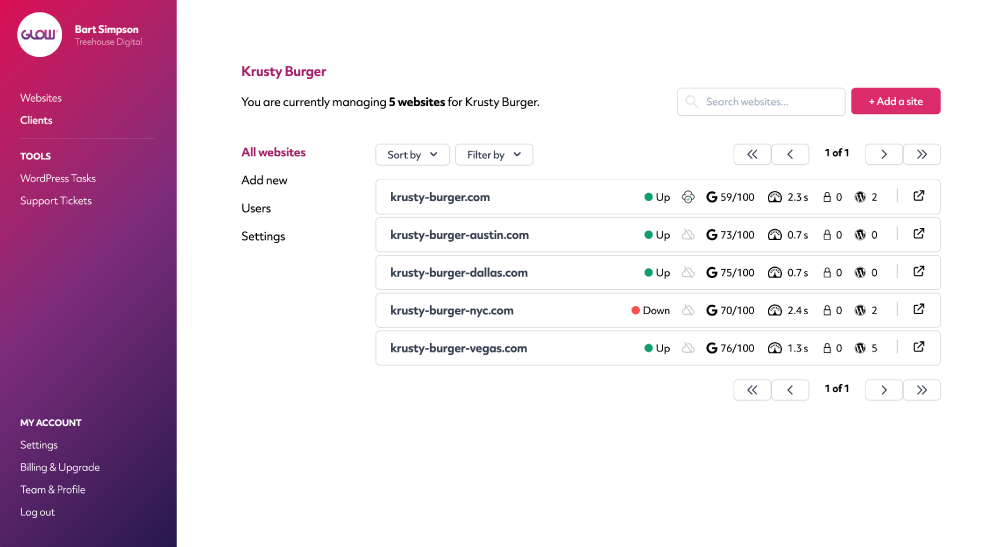
Rapidly switch between sites for the same client
Hands up if you like clicking loads of times to do what you wanna do … yeah, us neither.
Use our simple website selector to quickly toggle between sites for the same client. You can easily add another site from here too.
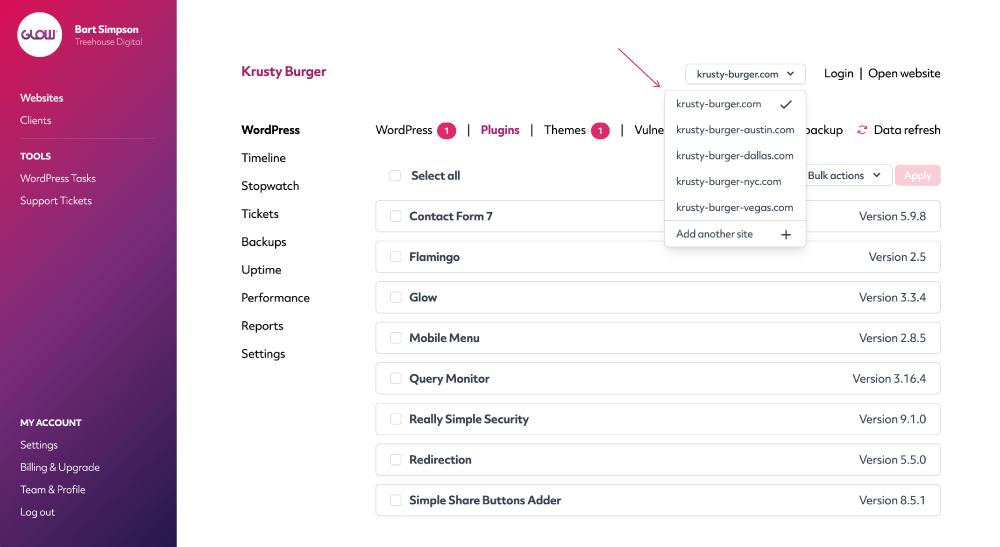
Easily add a new site for an existing client
Taken on another site to manage for your client? Sweet!
When you start adding the site to your account, just choose the client that the site belongs to and Glow will do the rest.
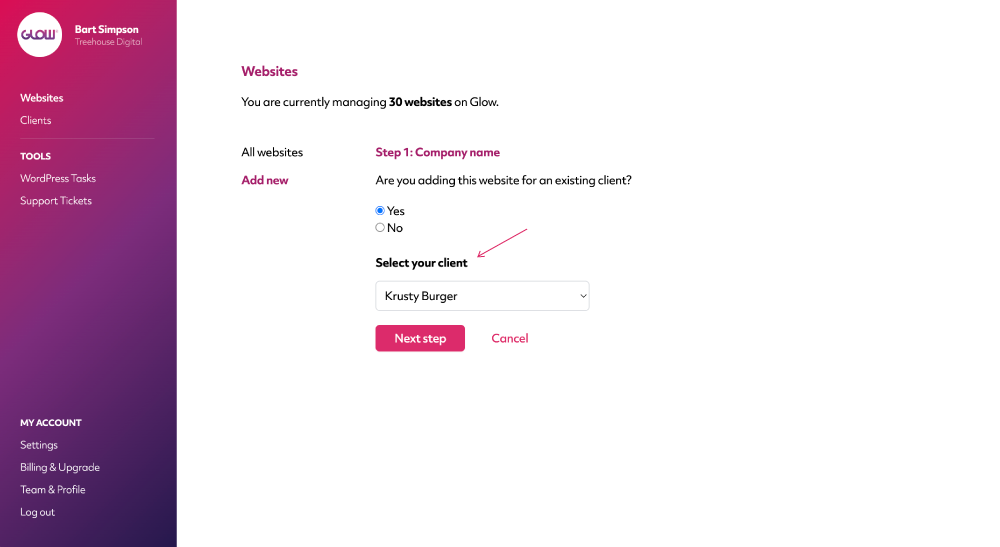
Simple sort by and filter options
Want to know which of your client’s sites is running slowest? Or maybe the one that has the most WordPress updates to complete. No problem, use the sort function and Glow will tell you.
You can also filter the sites by things like Uptime status and WordPress connection status.
Digital agency and web development teams trust Glow:

WordPress Management Tools

WordPress Management Tools

WordPress Management Tools

WordPress Management Tools

FAQs for our Multiple Sites feature
How does the Multiple Sites feature work?
At the time you add a new website in your Glow account, you’re asked whether the client for that website already exists in your Glow account or not. If the client already exists, you can select them from a list and the new website is then added to the Client Area for that client.
This keeps things organised in your account so that for any client, you can quickly see which websites you’re managing for them.
Where do we add a new website for a client?
There’s a couple of places you can do this. First is from the main Websites screen, using the Add a site button. Follow the steps there to select your Client from the dropdown menu. Second, you can add the new Website for your Client from the Client Area. Head to the main Clients screen, select your Client and then use the Add a site button from there.
Will we see performance information for each website?
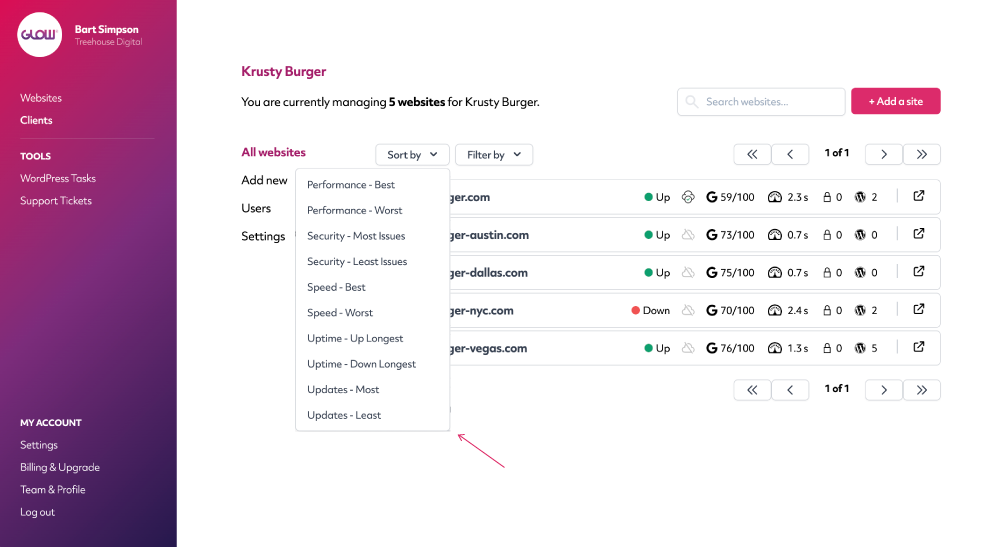
Yes, just like the main Websites screen, Glow will display the following information for each Website listed for your Client:
- Uptime status
- Backup status
- Performance score & site load speed
- Security vulnerabilities to fix
- Core, plugin & theme updates required
Other Features
WordPress Multisites
Connect your client’s Multisite Network in seconds. All activity is recorded in Glow, instantly.
More about WordPress MultisitesPerformance
Your client wants their website to load quickly. Performance will help you make sure it does.
More about PerformanceUptime
Continuous uptime monitoring. Know when and, crucially, WHY a client’s website goes down.
More about Uptime